
You changed your application code, restarted Docker Compose, and the container is still running the old version. The issue may be that your Docker image hasn’t been rebuilt.
The docker compose up –build command helps solve this by building applicable service images before starting the containers. It is particularly useful when you change a Dockerfile, update dependencies, or modify code copied into an image.
But –build does not rebuild everything from scratch, and it isn’t necessary for every code change.
Here’s what the command actually does, how to use it, and what to check when the expected changes don’t appear.
What Does docker compose up –build Do?
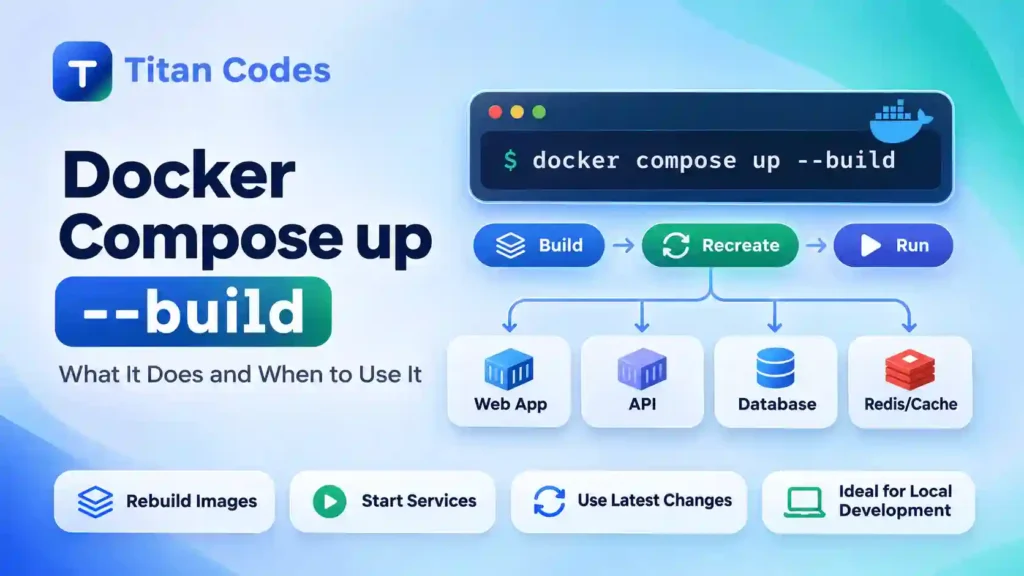
docker compose up –build builds images for applicable services in a Docker Compose project, then creates or starts their containers. If an existing container’s image or configuration has changed, Compose can recreate that container to apply the update.
The command is:
docker compose up –build
Each part has a specific purpose.
| Part | What It Does |
| docker | Runs the Docker CLI |
| compose | Runs Docker Compose |
| up | Creates and starts the services |
| –build | Builds applicable images before starting containers |
Without –build, Compose can still build an image when required, such as when a necessary image is missing. However, it does not explicitly request a build before every startup.
The official Docker Compose up documentation confirms that –build builds images before starting containers.
Important: Building an image and recreating a container are different operations. An image contains the packaged application. A container is a running instance created from an image.
What Happens When You Run docker compose up –build?
The command follows a sequence of operations.
1. Read compose.yaml
Find services, images, and build configuration
2. Build applicable images
Use Dockerfiles and reusable cache layers
3. Create or recreate containers
Apply changed images and configurations
4. Start services
Attach to logs unless detached mode is enabled
1. Docker Reads the Compose File
Compose looks for the project’s configuration, commonly stored in compose.yaml.
For example:
services:
app:
build: .
ports:
– “3000:3000”
The build: . instruction tells Compose that the application’s image should be built using the current directory as its build context.
2. Docker Builds the Images
For services with build configuration, Docker processes the relevant Dockerfile.
For example:
FROM node:24-alpine
WORKDIR /app
COPY package*.json ./
RUN npm ci –omit=dev
COPY app.js ./
CMD [“node”, “app.js”]
Docker checks whether existing build layers can be reused.
If the dependencies haven’t changed, the layer containing npm ci may already be cached.
3. Compose Creates or Recreates Containers
After building, Compose compares the desired configuration and image with existing containers.
If a container’s image or configuration has changed, Compose normally recreates it while preserving mounted volumes.
If nothing relevant has changed, Compose can reuse the existing container.
4. Compose Starts the Services
The containers start, and Compose displays their logs in the terminal.
By default, the command remains attached to the container output.
To start services in the background, use:
docker compose up -d –build
How to Use docker compose up –build: A Practical Example
Suppose you’re developing a Node.js application connected to PostgreSQL.
The application is built from local source code, while PostgreSQL uses a prebuilt Docker image.
1. Create the Project Structure
docker-compose-demo/
├── app.js
├── package.json
├── package-lock.json
├── Dockerfile
├── .dockerignore
└── compose.yaml
You will need Docker with the Compose plugin installed. You will also need Node.js and npm locally for the initial dependency installation.
2. Create the Node.js Application
Add this to package.json:
{
“name”: “compose-build-demo”,
“version”: “1.0.0”,
“private”: true,
“scripts”: {
“start”: “node app.js”
},
“dependencies”: {
“pg”: “^8.16.0”
}
}
Run:
npm install
This installs the PostgreSQL client dependency and generates package-lock.json.
Next, create app.js:
const http = require(‘node:http’);
const { Pool } = require(‘pg’);
const pool = new Pool({
connectionString: process.env.DATABASE_URL
});
const server = http.createServer(async (req, res) => {
if (req.url !== ‘/’) {
res.writeHead(404);
return res.end(‘Not found’);
}
try {
await pool.query(‘SELECT 1’);
res.writeHead(200, {
‘Content-Type’: ‘application/json’
});
res.end(JSON.stringify({
message: ‘Hello from Docker Compose!’,
database: ‘Connected’
}));
} catch (error) {
console.error(error);
res.writeHead(500);
res.end(‘Database unavailable’);
}
});
server.listen(3000, ‘0.0.0.0’);
This application starts an HTTP server and checks whether it can connect to PostgreSQL.
3. Create the Dockerfile
FROM node:24-alpine
WORKDIR /app
COPY package*.json ./
RUN npm ci –omit=dev
COPY app.js ./
EXPOSE 3000
CMD [“npm”, “start”]
The important instructions are:
- FROM selects the base image.
- WORKDIR sets the working directory.
- COPY places application files inside the image.
- RUN installs dependencies during the build.
- CMD defines the startup command.
Create .dockerignore as well:
node_modules
.git
.env
npm-debug.log
This prevents unnecessary local files from being included in the build context.
4. Create the Compose File
Add this to compose.yaml:
services:
app:
build: .
ports:
– “127.0.0.1:3000:3000”
environment:
DATABASE_URL: postgres://demo:demo_password@db:5432/demo
depends_on:
db:
condition: service_healthy
db:
image: postgres:17-alpine
environment:
POSTGRES_USER: demo
POSTGRES_PASSWORD: demo_password
POSTGRES_DB: demo
volumes:
– db_data:/var/lib/postgresql/data
healthcheck:
test: [“CMD-SHELL”, “pg_isready -U demo -d demo”]
interval: 5s
timeout: 5s
retries: 10
volumes:
db_data:
The example contains two services.
app is built from the local Dockerfile.
db uses the official PostgreSQL image.
The database also has a health check. This matters because simply starting PostgreSQL’s container does not mean it is immediately ready to accept connections.
Docker explains this distinction in its Compose startup-order documentation.
The password in this example is only for local development. Real projects should use appropriate secret management rather than placing production credentials directly in a Compose file.
5. Build and Start the Application
Run:
docker compose up –build
Docker will:
- Build the Node.js application image.
- Pull the PostgreSQL image if required.
- Create the database container and wait for its health check.
- Create and start the application container.
- Display the service logs.
Open:
http://localhost:3000
The application should return:
{
“message”: “Hello from Docker Compose!”,
“database”: “Connected”
}
6. Change the Application and Rebuild
Update the message in app.js:
message: ‘Updated application version!’
Stop the attached Compose session with Ctrl+C, then run:
docker compose up –build
Docker sees the changed application source, updates the relevant image layer, and Compose can recreate the application container with the new image.
The PostgreSQL data remains in its named volume.
This is the practical reason developers use up –build: the application source is part of the image, and the image needs updating before the running container can use that version.
docker compose up vs docker compose up –build
The main difference is whether an image build is explicitly requested before starting the services.
| Command | Behavior | Best Used For |
| docker compose up | Creates and starts services; may build when needed | Normal startup |
| docker compose up –build | Builds applicable images, then starts services | Changes to image-built code or configuration |
| docker compose build | Builds images without starting services | Preparing images separately |
| docker compose up -d –build | Builds and starts services in the background | Detached development environment |
| docker compose up –force-recreate | Forces container recreation | Applying a fresh container even if unchanged |
For example, if you only want to build an image:
docker compose build
If you want to build it and then start the application:
docker compose up –build
And if you want the application to keep running after the terminal command exits:
docker compose up -d –build
When Should You Use docker compose up –build?
You do not need this command every time you start Docker.
Use it when changes need to be incorporated into a new image.
1. After Changing a Dockerfile
For example, you change:
FROM node:22-alpine
to:
FROM node:24-alpine
A rebuild is needed for the new base image choice to affect the application image.
2. After Changing Source Code Copied Into the Image
If your Dockerfile contains:
COPY app.js ./
then changing app.js does not automatically change the contents of an existing image.
Running docker compose up –build updates the image and allows Compose to use it.
3. After Updating Dependencies
If you change package.json and update the lockfile, the image needs the revised dependencies.
For example:
npm install axios
docker compose up –build
The newly built image can now contain the updated package.
4. When Starting a Newly Configured Project
For a project containing locally built services, up –build is a convenient way to build what is necessary and start the environment in one command.
When Is –build Unnecessary?
If the application source is bind-mounted into the container and your development server already watches file changes, ordinary edits may appear without rebuilding.
Docker also offers Compose Watch, which can synchronize files or trigger rebuilds automatically according to configured rules.
For frequently edited development applications, that can be more convenient than manually running up –build after every change.
Does docker compose up –build Rebuild Everything?
No. The command requests image builds, but Docker can still reuse cached layers.
Suppose your Dockerfile contains:
COPY package*.json ./
RUN npm ci –omit=dev
COPY app.js ./
You change only app.js.
Docker may reuse the cached dependency installation because package.json and package-lock.json have not changed.
It then rebuilds the layer affected by app.js.
That is expected behavior, not a failed build.
Docker’s build-cache documentation explains that layers can be reused when their instructions and relevant inputs have not changed.
Also, services that only specify a prebuilt image, such as:
db:
image: postgres:17-alpine
are not locally rebuilt from a Dockerfile just because you used –build.
How to Run Docker Compose Without Build Cache
If you suspect a caching issue, you can rebuild without using cached layers.
Use:
docker compose build –no-cache
docker compose up -d
Or target only one service:
docker compose build –no-cache app
docker compose up -d
The –no-cache option belongs to docker compose build.
This is not a valid equivalent:
docker compose up –build –no-cache
The up command does not provide that –no-cache flag.
The official Docker Compose build reference documents the supported option.
A no-cache build is useful for diagnosing specific problems, but it should not be your default. It can increase build time because Docker cannot reuse the ordinary cached build layers.
Why Is docker compose up –build Not Showing My Code Changes?
A successful build does not always mean the changed source reached the running application.
Check the following issues before deleting images or containers.
| Problem | Likely Cause | What to Check |
| Old code still runs | Source wasn’t copied into image | Dockerfile COPY instructions |
| Changes are missing | File excluded from build | .dockerignore |
| Wrong code version appears | Bind mount overrides image files | Compose volumes |
| Wrong service was rebuilt | Incorrect service or project | Compose configuration |
| Build keeps using cached layers | Relevant build inputs haven’t changed | Build logs and context |
| App fails after startup | Application or dependency error | Container logs |
| Database connection fails | Database not ready or incorrect hostname | Health checks and service names |
1. Check the Dockerfile
If your Dockerfile does not copy the modified source into the image, rebuilding will not magically include it.
Check the COPY instructions.
2. Check .dockerignore
A file excluded by .dockerignore may never reach the build context.
Docker explains this in its build-context documentation.
3. Check Bind Mounts
Suppose your Compose file contains:
volumes:
– .:/app
The host directory is mounted over /app inside the container.
This can hide files that were originally copied into that location during the image build.
The application may therefore be reading mounted files rather than the ones inside the image.
4. Check the Compose Configuration
Run:
docker compose config
This displays the resolved Compose configuration.
It can help you identify incorrect build contexts, paths, service settings, and environment configuration.
5. Check the Running Containers
Use:
docker compose ps
Then inspect logs:
docker compose logs app
To follow them continuously:
docker compose logs -f app
6. Rebuild the Specific Service
If you want to rebuild only the application service, use:
docker compose up -d –build app
Compose may also start dependencies required by that service.
To force container recreation as well:
docker compose up -d –build –force-recreate app
Use –force-recreate when recreation is actually necessary. It does not fix an incorrect build context or missing source file.
Does docker compose up –build Delete Volumes or Database Data?
No. Building an image does not automatically delete named Docker volumes.
In the earlier example:
volumes:
– db_data:/var/lib/postgresql/data
PostgreSQL stores its database files in the named volume.
The application’s container can be rebuilt and recreated without deleting that volume.
Be careful with cleanup commands, though.
| Command | Effect on Named Volumes |
| docker compose stop | Preserves them |
| docker compose down | Preserves them by default |
| docker compose up –build | Preserves them during normal recreation |
| docker compose down -v | Removes Compose-managed named volumes |
The last command can destroy locally stored database data. Docker documents that behavior in the Compose down reference.
Should You Use docker compose up –build in Production?
The command can be used on a production server, but building application images directly during deployment is not always the best approach.
A more controlled production workflow is often:
Source Code → CI Build → Automated Tests → Image Registry → Deployment
This approach lets teams deploy an image that has already been built and tested.
Benefits can include:
- Reproducible image versions
- Easier rollback
- Clearer release tracking
- Fewer build-time dependencies on production servers
- Better separation between building and deploying
Production teams also need to consider availability during container recreation. Docker Compose does not automatically provide zero-downtime deployment just because up -d is used.
For a small internal environment, a straightforward Compose deployment may be sufficient. For a business-critical SaaS application, deployment, recovery, rollback, security, and monitoring usually need additional planning.
How Titan Codes Approaches Container Builds and Deployment
Docker Compose is useful for bringing application services together, but it is only one part of a reliable software delivery process.
At Titan Codes, deployment planning is considered alongside the application architecture, database requirements, hosting environment, monitoring, backups, and release process.
A local development environment may use docker compose up –build for quick iteration. A production SaaS platform may instead require prebuilt images, CI/CD pipelines, controlled releases, and rollback procedures.
These decisions are part of the wider work covered by Titan Codes Cloud Services, which includes hosting, deployment, migration, monitoring, and infrastructure planning.
The Titan Codes development process also connects testing and launch preparation with earlier architecture decisions, helping teams avoid treating deployment as an afterthought.
Frequently Asked Questions About Docker Compose up –build
Does docker compose up –build Rebuild Every Container?
No. The command requests builds for applicable service images. Docker may reuse cached layers, and Compose does not necessarily recreate containers whose images and configuration have not changed. Building an image and recreating a container are separate operations.
What Is the Difference Between docker compose build and docker compose up –build?
docker compose build builds service images without starting containers. docker compose up –build builds applicable images and then creates or starts the services. Use the first when you only need an image build and the second when you want to build and run the environment.
How Do I Run docker compose up –build in the Background?
Use:
docker compose up -d –build
The -d option enables detached mode, which keeps the containers running in the background after the command returns.
Why Does Docker Still Use Cache With –build?
Because –build requests a build, not a complete cache bypass. Docker reuses layers when the relevant instructions and inputs have not changed. To bypass build cache, run docker compose build –no-cache before starting the services.
Does docker compose up –build Delete Existing Data?
No. The command does not automatically delete named volumes. Data stored in a properly configured named volume normally survives container recreation. However, commands such as docker compose down -v remove Compose-managed volumes and can delete database data stored in them.
Final Thoughts
Use docker compose up –build when your application image needs updating before its containers start.
It is particularly useful after Dockerfile changes, dependency updates, or source changes copied into an image.
If the new code still does not appear, check the build context, Dockerfile, cache, bind mounts, and running containers before trying a complete rebuild.
The key distinction is simple: building updates the image; starting or recreating a container determines which image your application runs.