
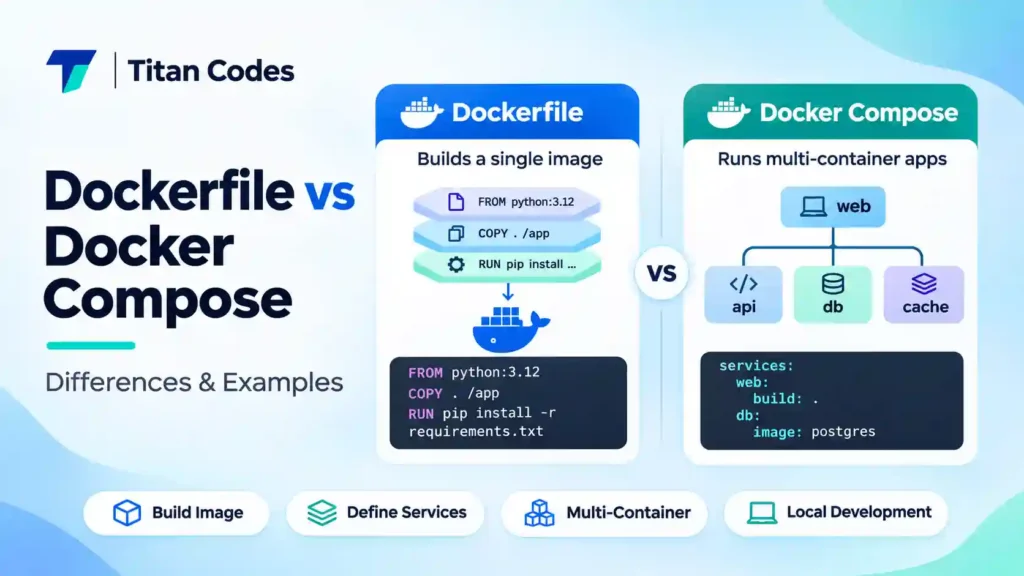
You open a Docker project and find two files: Dockerfile and compose.yaml. Both affect how the application runs, but they handle different parts of the process.
A Dockerfile tells Docker how to build an application image. Docker Compose defines the services that make up the application, including how containers communicate, which ports they use, and where their data is stored.
The easiest way to understand the difference is to use both in a working project.
In this guide, we’ll build a small inventory API using Python FastAPI and PostgreSQL. You’ll see what belongs in each file, how the application and database work together, and when you might not need both.
Dockerfile vs Docker Compose: What Is the Difference?
A Dockerfile defines how to build a container image, while Docker Compose defines how one or more application services are configured and run.
Think about an API that needs Python, application dependencies, and source code. Those requirements belong in the Dockerfile.
Now suppose that API also needs a PostgreSQL database, environment variables, networking, and persistent storage. Docker Compose can configure those runtime requirements.
Neither tool replaces the other in every situation. They handle different responsibilities and are often used together.
Key Differences Between Dockerfile and Docker Compose
| Feature | Dockerfile | Docker Compose |
| Primary purpose | Build container images | Define and manage application services |
| Common filename | Dockerfile | compose.yaml |
| File format | Dockerfile instructions | YAML |
| Main responsibility | Image construction | Runtime configuration |
| Common instructions | FROM, RUN, COPY, CMD | services, build, ports, volumes |
| Typical command | docker build | docker compose up |
| Configures networking | Not normally | Yes |
| Manages service dependencies | No | Yes |
| Configures persistent volumes | Not the primary mechanism | Yes |
| Can work independently | Yes | Yes |
Dockerfile is mainly concerned with what goes into an image. Compose is concerned with how the services are assembled and run.
What Is a Dockerfile?
A Dockerfile is a text file containing instructions that Docker uses to build a container image.
It specifies the base environment, application files, dependencies, and default startup behavior.
For example, a Python application might need Python 3.12, several installed packages, and its source code copied into the image.
A Dockerfile defines how those pieces are assembled.
1. Base Images and Dependencies
Every normal Dockerfile build stage starts with a FROM instruction.
FROM python:3.12-slim
This uses a Python 3.12 image as the starting point.
You can then install application dependencies.
WORKDIR /app
COPY requirements.txt .
RUN pip install –no-cache-dir -r requirements.txt
Here’s what happens:
- WORKDIR sets the working directory.
- COPY places the requirements file inside the image.
- RUN executes the package installation while the image is being built.
The result is an image containing the runtime and dependencies needed by the application.
2. Copying Application Files
After installing dependencies, the Dockerfile can copy the application code.
COPY main.py .
This places main.py inside the image’s working directory.
The source files available to the build depend on its build context. Files outside that context generally cannot be copied using ordinary relative paths.
Docker explains this behavior in its build context documentation.
3. Setting the Startup Command
The CMD instruction defines the default command used when a container starts.
For a FastAPI application:
CMD [“uvicorn”, “main:app”, “–host”, “0.0.0.0”, “–port”, “8000”]
This starts the API using Uvicorn.
An important distinction is that RUN executes during image building, while CMD specifies runtime behavior.
You can find the full instruction definitions in Docker’s official Dockerfile reference.
What Is Docker Compose?
Docker Compose is a tool for defining and managing containerized applications through a configuration file.
Instead of manually creating each container with separate Docker commands, you describe the services in a Compose file.
For example, an application might include:
- A backend API
- A PostgreSQL database
- A Redis cache
- A background worker
Compose can manage those services together, including their configuration and connections.
1. Services and Container Images
Services are defined under the services section.
A service can use an existing image:
services:
db:
image: postgres:17-alpine
Or it can build an image using a Dockerfile:
services:
api:
build: ./api
The first example uses an existing PostgreSQL image.
The second tells Compose to build the API image using the api directory as its build context.
This distinction is important because Docker Compose does not require a separate Dockerfile for every service.
2. Ports, Environment Variables, and Networking
Compose can configure runtime settings.
For example:
services:
api:
ports:
– “127.0.0.1:8000:8000”
environment:
APP_MODE: development
The ports setting publishes port 8000 to the host’s loopback interface.
The environment setting makes APP_MODE available inside the container.
Compose also creates a default network for the application, allowing services to communicate using their service names.
3. Volumes and Persistent Data
Containers are replaceable, but applications often need data to survive container replacement.
Compose can attach named volumes to services.
For example:
volumes:
– postgres_data:/var/lib/postgresql/data
This stores PostgreSQL’s database files in a Docker-managed volume.
The volume remains available when the database container is recreated, provided it is not explicitly removed.
4. Service Dependencies and Health Checks
Some services depend on others.
An API may require PostgreSQL to be ready before it can initialize its database tables.
Compose supports dependency conditions such as:
depends_on:
db:
condition: service_healthy
With an appropriate health check configured for db, Compose waits until the database reports healthy before starting the dependent service.
The Docker Compose startup-order guide explains this behavior.
How Do Dockerfile and Docker Compose Work Together?
Dockerfile and Docker Compose work together through the build configuration.
Consider this example:
services:
api:
build:
context: ./api
dockerfile: Dockerfile
Compose uses the api directory as the build context and reads the Dockerfile located there.
Docker then builds the image using the instructions in that Dockerfile.
Compose uses the resulting image to create and start the API container with the configured runtime settings.
The process looks like this:
Application Source
|
v
Dockerfile
|
v
Docker Build
|
v
API Image
|
v
Docker Compose
|
+—- API Container
|
+—- PostgreSQL Container
|
+—- Network
|
+—- Database Volume
The Dockerfile builds the API image. Compose brings the application environment together.
This relationship is documented in Docker’s Compose Build Specification.
Build a Real Application Using Dockerfile and Docker Compose
Let’s create an inventory API that stores product information in PostgreSQL.
The application will support three operations:
- Check whether the API is healthy.
- Add a product to the database.
- Retrieve saved products.
We’ll use a Dockerfile to package the API and Docker Compose to configure the API and PostgreSQL services.
Step 1: Create the Application Structure
Create a directory named inventory-demo.
Inside it, organize the files as follows:
inventory-demo/
├── api/
│ ├── main.py
│ ├── requirements.txt
│ ├── Dockerfile
│ └── .dockerignore
└── compose.yaml
The API-related files are stored in the api directory.
The Compose file sits at the project root because it defines the overall application environment.
Step 2: Create the FastAPI Application
First, create requirements.txt inside the api directory.
fastapi>=0.115,<1
uvicorn>=0.30,<1
psycopg[binary]>=3.2,<4
These dependencies provide the API framework, application server, and PostgreSQL driver.
Next, create main.py.
import os
from contextlib import asynccontextmanager
import psycopg
from psycopg.rows import dict_row
from fastapi import FastAPI
from pydantic import BaseModel, Field
DB_URL = os.environ[“DATABASE_URL”]
@asynccontextmanager
async def lifespan(app: FastAPI):
with psycopg.connect(DB_URL) as conn:
conn.execute(“””
CREATE TABLE IF NOT EXISTS products (
id BIGINT GENERATED ALWAYS AS IDENTITY PRIMARY KEY,
name TEXT NOT NULL,
price_cents INTEGER NOT NULL
CHECK (price_cents >= 0)
)
“””)
yield
app = FastAPI(lifespan=lifespan)
class ProductIn(BaseModel):
name: str = Field(min_length=1)
price_cents: int = Field(ge=0)
@app.get(“/health”)
def health():
with psycopg.connect(DB_URL) as conn:
conn.execute(“SELECT 1”)
return {“status”: “ok”}
@app.post(“/products”, status_code=201)
def create_product(product: ProductIn):
with psycopg.connect(DB_URL, row_factory=dict_row) as conn:
return conn.execute(
“INSERT INTO products (name, price_cents) “
“VALUES (%s, %s) “
“RETURNING id, name, price_cents”,
(product.name, product.price_cents),
).fetchone()
@app.get(“/products”)
def list_products():
with psycopg.connect(DB_URL, row_factory=dict_row) as conn:
return conn.execute(
“SELECT id, name, price_cents “
“FROM products ORDER BY id”
).fetchall()
The application creates a products table during startup if the table does not already exist.
It also defines three HTTP endpoints:
| Endpoint | Purpose |
| GET /health | Check API and database connectivity |
| POST /products | Insert a product |
| GET /products | Retrieve products |
For simplicity, this example creates the table during application startup. Production applications should generally use a proper database migration process.
Step 3: Write the Dockerfile
Create api/Dockerfile:
FROM python:3.12-slim
WORKDIR /app
COPY requirements.txt .
RUN pip install –no-cache-dir -r requirements.txt
COPY main.py .
EXPOSE 8000
CMD [“uvicorn”, “main:app”, “–host”, “0.0.0.0”, “–port”, “8000”]
This Dockerfile handles the image-building requirements.
It selects Python, installs dependencies, copies the API code, documents the listening port, and defines the startup command.
It does not configure PostgreSQL, create a Docker network, or decide how database files are persisted.
Those are runtime concerns.
Also create api/.dockerignore:
__pycache__/
*.pyc
.venv/
.env
.git/
This prevents unnecessary local files from entering the build context.
Step 4: Configure FastAPI and PostgreSQL With Compose
Create compose.yaml in the project root:
services:
api:
build:
context: ./api
dockerfile: Dockerfile
ports:
– “127.0.0.1:8000:8000”
environment:
DATABASE_URL: postgresql://inventory:local_password@db:5432/inventory
depends_on:
db:
condition: service_healthy
db:
image: postgres:17-alpine
environment:
POSTGRES_USER: inventory
POSTGRES_PASSWORD: local_password
POSTGRES_DB: inventory
volumes:
– postgres_data:/var/lib/postgresql/data
healthcheck:
test: [“CMD-SHELL”, “pg_isready -U inventory -d inventory”]
interval: 5s
timeout: 5s
retries: 10
volumes:
postgres_data:
This file handles what the Dockerfile does not.
The API service
The api service builds the application image using api/Dockerfile.
It publishes port 8000 to the host, provides the database connection string, and waits for PostgreSQL to become healthy.
The database service
The db service uses the official PostgreSQL image.
It does not need a custom Dockerfile because we are not modifying the database image.
The named volume stores database files outside the container’s writable layer.
Why is the database hostname db?
Inside the Compose network, services can communicate using their service names.
The API therefore connects to PostgreSQL using db, not localhost.
The password in this example is for local development only. Do not commit real credentials to a Dockerfile or Compose file. Production secrets need appropriate secret management.
Step 5: Build and Start the Application
Make sure Docker Engine and the Docker Compose plugin are installed and running.
Open a terminal in the inventory-demo directory.
First, validate the Compose configuration:
docker compose config
Then build and start the application:
docker compose up -d –build
This instructs Compose to build the API image and start the application services in detached mode.
Check their status:
docker compose ps
You should see the API and PostgreSQL services running.
You can inspect the API logs with:
docker compose logs api
For a closer explanation of rebuilding images, Docker’s Compose up command reference describes –build, detached mode, and container recreation.
Step 6: Test the Inventory API
Start with the health endpoint.
curl http://localhost:8000/health
Expected response:
{
“status”: “ok”
}
Next, create a product:
curl -X POST http://localhost:8000/products \
-H “Content-Type: application/json” \
-d ‘{“name”:”Keyboard”,”price_cents”:3500}’
Expected response on a fresh database:
{
“id”: 1,
“name”: “Keyboard”,
“price_cents”: 3500
}
Finally, retrieve the products:
curl http://localhost:8000/products
Expected response:
[
{
“id”: 1,
“name”: “Keyboard”,
“price_cents”: 3500
}
]
The application returns information stored in PostgreSQL, not an in-memory Python list.
If the database already contains products, the generated ID and returned list may differ.
Step 7: Restart the Containers and Check Data Persistence
Now stop and remove the application’s containers:
docker compose down
Start them again:
docker compose up -d
Retrieve the products:
curl http://localhost:8000/products
The saved keyboard should still appear.
That’s because PostgreSQL writes its data into the named volume configured in compose.yaml.
The container can be recreated without deleting the database files stored in that volume.
Do not use docker compose down -v for this test. The -v option removes Compose-managed named volumes and can delete the database data.
Docker explains these differences in its volume documentation.
The demonstration shows why Dockerfile and Docker Compose have separate jobs: one packages the API, while the other manages the application environment and its persistent storage.
Which Settings Belong in Dockerfile vs Docker Compose?
Some settings can be defined at image-build time, runtime, or both. The right location depends on whether the setting is part of the image itself or the environment where the image runs.
| Requirement | Dockerfile | Docker Compose |
| Select Python or Node.js base image | FROM | Not required for prebuilt images |
| Install application packages | RUN | Can trigger the build |
| Copy application source | COPY | Can mount source during development |
| Default startup command | CMD | command can override it |
| Build-time values | ARG | build.args can supply them |
| Default environment variables | ENV | environment can override or supply values |
| Document listening port | EXPOSE | ports publishes it |
| Database credentials | Avoid hardcoding | Runtime secrets or environment configuration |
| Persistent database data | Not normally managed here | volumes |
| Service dependencies | Not applicable | depends_on |
Three comparisons are particularly useful.
EXPOSE vs ports
EXPOSE documents the port an application listens on.
For example:
EXPOSE 8000
It does not publish that port to the host.
Compose can publish it:
ports:
– “127.0.0.1:8000:8000”
The first host-port value is 8000, and the second is the container’s port 8000.
The explicit 127.0.0.1 binding makes the API available on the host’s loopback interface rather than all network interfaces.
Dockerfile CMD vs Compose command
Dockerfile CMD defines the image’s default startup command.
Compose can override that command for a particular service.
For example:
command: [“python”, “-m”, “http.server”, “8000”]
This is useful when the same image needs a different startup command in a particular environment.
However, the replacement command must still make sense for the contents of that image.
Dockerfile ENV vs Compose environment
Dockerfile ENV can provide default environment variables in an image.
Compose environment supplies runtime values to the service and can override image defaults.
For example, a database connection string usually changes between development, staging, and production.
It therefore makes more sense to provide it through runtime configuration than to hardcode it into an application image.
Do You Need Both Dockerfile and Docker Compose?
No. You need both when your workflow benefits from building a custom image and managing its runtime environment through Compose.
There are cases where only one is necessary.
| Situation | What You Need |
| Build a custom application image | Dockerfile |
| Run a prebuilt PostgreSQL image | Docker Compose is sufficient |
| Run a custom API alongside PostgreSQL | Usually both |
| Run multiple prebuilt images together | Compose without custom Dockerfiles |
| Package an application for a cloud container platform | Dockerfile or another image build mechanism |
| Configure one container using Compose | Compose can handle this |
Can Docker Compose Work Without a Dockerfile?
Yes.
Suppose you only want to run Redis:
services:
redis:
image: redis:7-alpine
Compose can create and run this service without a Dockerfile.
The image already exists in a registry.
Can You Use a Dockerfile Without Compose?
Yes.
You can build an image directly:
docker build -t inventory-api ./api
You can then start a container using docker run and provide the required environment variables, ports, and other settings yourself.
Compose becomes convenient when those runtime requirements need to be defined and reused consistently.
docker build vs docker compose build vs docker compose up
These commands are related, but they do different things.
| Command | What It Does |
| docker build | Builds an image from a specified build context |
| docker compose build | Builds images for applicable services defined in Compose |
| docker compose up | Creates and starts application services |
| docker compose up –build | Builds applicable images before starting services |
| docker compose down | Stops and removes the project’s containers and networks |
For example:
docker compose build
builds configured service images without starting the application.
But:
docker compose up -d –build
builds applicable images and starts the services in the background.
The Docker Compose build documentation explains the image-building behavior in more detail.
Common Dockerfile and Docker Compose Mistakes
Problems often arise when build configuration and runtime configuration are confused.
| Mistake | Why It Causes Problems | Correct Approach |
| Assuming EXPOSE publishes a port | The host cannot necessarily access it | Configure ports or an equivalent publish option |
| Using localhost for another service | It refers to the current container | Use the Compose service hostname |
| Assuming depends_on means database readiness | A running container may not be ready | Use health checks and service_healthy |
| Putting secrets in a Dockerfile | Sensitive values can become part of image metadata or layers | Use appropriate runtime secret management |
| Forgetting .dockerignore | Unnecessary files enter the build context | Exclude caches, secrets, and local artifacts |
| Mounting source over application files | Bind mounts can hide image contents | Check mount paths carefully |
| Forgetting named volumes | Container replacement can remove stored data | Configure persistent storage |
| Adding an obsolete Compose version field | Creates unnecessary configuration noise | Use the modern Compose specification |
Why Does localhost Fail Between Containers?
In our example, the API and PostgreSQL run in separate containers.
From inside the API container, localhost refers to the API container itself.
The database is available through the Compose service name db.
That’s why the connection string contains:
@db:5432
instead of:
@localhost:5432
Why Does a Container Start Before Its Dependency Is Ready?
Container startup and application readiness are not the same event.
A PostgreSQL process can be running while it is still initializing.
That’s why the example uses a database health check with condition: service_healthy.
This waits for the defined health condition before starting the API, although robust applications should still handle database connectivity failures that occur later.
Can Dockerfile and Docker Compose Be Used in Production?
Yes, but production deployments need more planning than a local development environment.
A Dockerfile can build an application image used in a production release.
Compose can run services on production hosts where that deployment model is appropriate.
However, many production teams separate image building from deployment.
For example:
Source Code
|
v
CI Pipeline
|
v
Build Docker Image
|
v
Run Automated Tests
|
v
Push Versioned Image
|
v
Deploy to Production
This allows production environments to run images that have already been built and tested.
The runtime configuration can then provide environment-specific values, secrets, storage, and networking.
Production considerations also include:
- Versioned images and rollback procedures
- Database backups
- Secure configuration
- Health checks and monitoring
- Resource limits
- Access controls
- Availability during updates
For a small application, Docker Compose may be sufficient. More complex infrastructure may require additional deployment and orchestration tooling.
The key is choosing a deployment process that fits the application’s reliability, security, and operational requirements.
How Titan Codes Approaches Application Containerization
At Titan Codes, containerization is considered as part of the wider application architecture rather than a separate task performed only before launch.
A web API, SaaS platform, or custom software product may require different image-building, hosting, database, networking, monitoring, and deployment arrangements.
Dockerfiles help define repeatable application images. Docker Compose can make local development and certain deployments easier by describing how services work together.
These decisions connect with Titan Codes Cloud Services, which cover hosting foundations, deployment pipelines, databases, monitoring, and recovery planning.
The same considerations appear in the Titan Codes development process, where deployment and maintenance are planned alongside software design and development.
The objective is to create an environment that developers can reproduce and teams can maintain without unnecessary configuration complexity.
Frequently Asked Questions About Dockerfile vs Docker Compose
1. Can Docker Compose Replace a Dockerfile?
Docker Compose does not generally replace the purpose of a Dockerfile. A Dockerfile defines image-building instructions, while Compose configures application services. Compose can use prebuilt images without a Dockerfile, and modern Compose also supports inline Dockerfile definitions for some use cases.
2. Can Docker Compose Run Without a Dockerfile?
Yes. Docker Compose can run services using prebuilt images from a container registry. For example, PostgreSQL, Redis, and Nginx can be configured through Compose without creating a custom Dockerfile.
3. Can Docker Compose Be Used for a Single Container?
Yes. Docker Compose can manage one service or multiple services. It is useful even for a single container when developers want a reusable configuration for environment variables, ports, volumes, and startup behavior.
4. What Is the Difference Between docker build and docker compose build?
docker build builds an image using the build context and options provided in the command. docker compose build builds applicable service images using build definitions from a Compose project. Neither command automatically starts all the application services.
5. Can Multiple Compose Services Use the Same Dockerfile?
Yes. Multiple services can reference the same Dockerfile or image. For example, a web application and background worker may share one image but use different startup commands. This avoids duplicating image-building instructions when the services need the same dependencies and application code.
Final Thoughts
Dockerfile and Docker Compose are not competing tools.
A Dockerfile defines how an application image is built. Docker Compose defines how application services are configured, connected, and run.
In our inventory example, the Dockerfile packaged the FastAPI application, while Compose connected it to PostgreSQL, configured networking, and provided persistent database storage.
Once you understand which responsibility belongs where, Docker projects become easier to configure, troubleshoot, and maintain.